Pipeline versioning
Seqera's pipeline versioning system captures configuration changes as new draft versions of the pipeline, ensuring configuration traceability and execution reproducibility. Users with Maintain or higher permissions can edit and publish draft versions, creating published versions that teams can reference and launch consistently.
To ensure fully reproducible behavior for pipelines configured with a branch or tag revision, it is essential to pin the commit ID of the workflow repository. This is because the 'HEAD' state of the repository can change over time. For more details see Git revision management.
For deterministic and reproducible pipeline execution, use commit ID pinning for published pipeline versions. This ensures the same workflow code is used across all launches of that version.
When you add a new pipeline to Seqera, the first default version of that pipeline is automatically published.
New draft versions are automatically generated during pipeline edit or launch when you modify the following:
-
All pipeline schema parameters, unless the
track_changesschema configuration for a given property is set tofalse.infoChanges to all pipeline schema parameters during pipeline edit or launch trigger a new version by default i.e. the default for parameters is assumed as
"track_changes": true. The intent with pipeline versioning is to allow the common variable inputs (e.g. fastq files) and outputs (e.g. outputDir) to be omitted for consideration during versioning. To enable this behavior for specific parameters, add"track_changes": falseto the parameter property definition in the schema:"track_changes": false
}For nested parameters,
track_changesis supported at the leaf node level:"nestedParam": {
"type": "object",
"properties": {
"leafParam": {
"type": "string",
  "track_changes": false
}
}
} -
Fields in the pipeline Edit form, excluding:
- Name
- Image
- Description
- Labels
-
Custom Nextflow schema file (see Custom schema)
Published versions provide a stable reference for team-wide pipeline launches. Users with Maintain or higher permissions can publish a draft version, giving it a name and optionally setting it as the default version. This makes important configurations easy to identify, share, and promote across your team.
A pipeline's default version is shown in the Launchpad and automatically selected during launch.
Seqera maintains a history of all draft and published versions, providing an audit trail of pipeline evolution.
Custom schema
Users with Maintain or higher permissions can upload a custom nextflow_schema.json file to control which pipeline parameters are exposed in the launch form. This allows you to restrict the parameters visible to launch users, simplifying the launch experience and preventing modification of parameters that should remain fixed.
The custom schema field is available when adding or editing a pipeline. When you upload a custom schema:
- The schema content is validated to ensure it's a valid Nextflow schema
- The custom schema controls which parameters appear in the pipeline launch form
- Changes to the custom schema trigger a new draft version of the pipeline
- The custom schema is applied to all launches using that pipeline version
To add or update a custom schema:
- Navigate to Add pipeline or select Edit for an existing pipeline
- In the Custom Schema JSON field, paste your custom Nextflow schema JSON
- The schema is validated automatically as you enter it
- Select Add or Save to create a new draft version with the custom schema
Manage pipeline versions
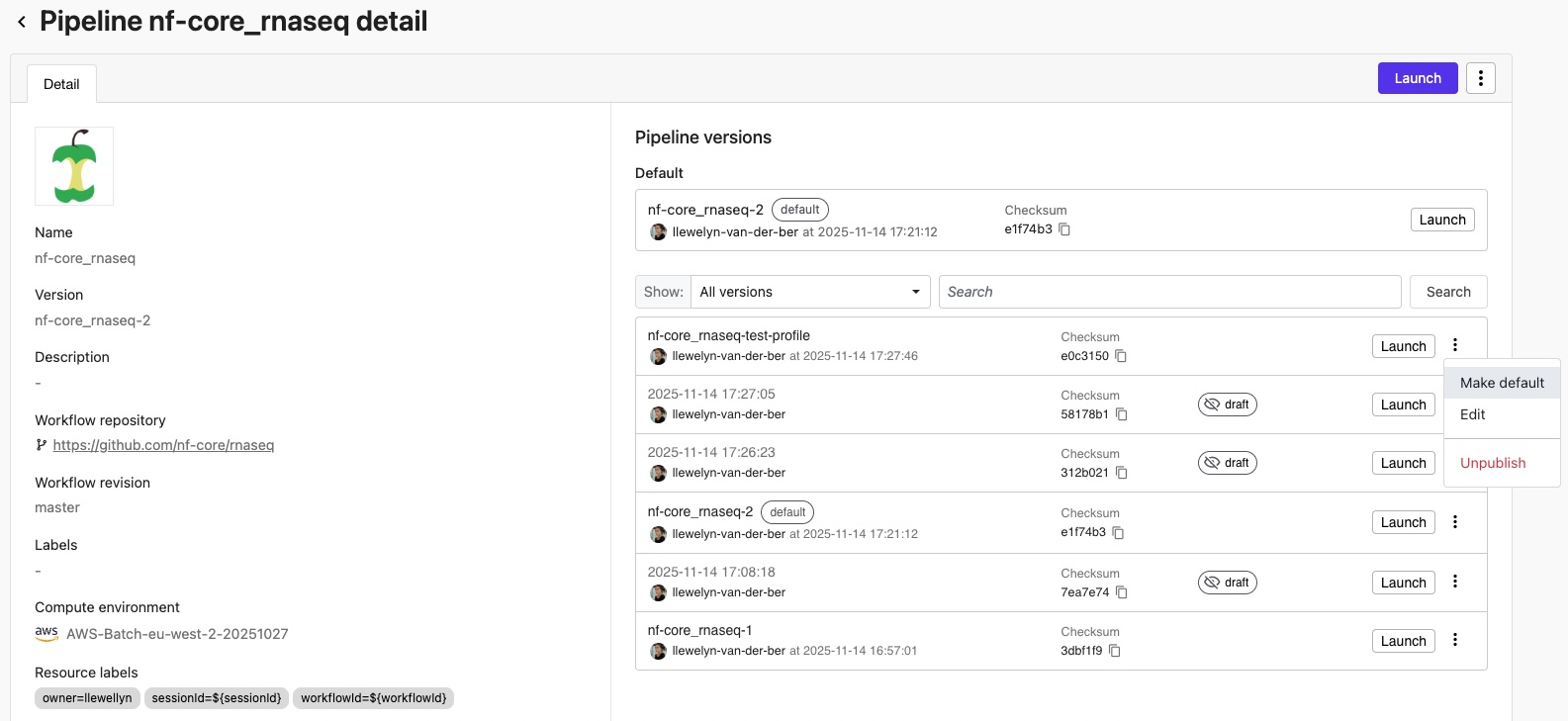
Select a pipeline from the workspace Launchpad to open the pipeline's details page. From here, users with Maintain or higher permissions can:
- View version history: See a chronological list of all draft and published versions with creator, date, and hash.
- Use the dropdown next to Show: to show all versions, or filter by draft or published versions.
- Search for specific version names (freetext search), or use keywords to search by
versionId:,versionName:, orversionHash:(version hash).
- Manage draft versions:
- Select Publish from the options menu of a draft version to name this version and optionally make it the default version to launch from the Launchpad.
note
Draft versions created from workflow runs can only be published from the pipeline's original workspace. For shared pipelines, the Publish action is only available in the workspace where the pipeline was created.
- Select Edit to open the pipeline edit form and either save a new draft or publish the current draft version.
- Select Publish from the options menu of a draft version to name this version and optionally make it the default version to launch from the Launchpad.
- Manage published versions:
- Select Make default from the options menu of a published version to use this version for every pipeline launch.
- Select Edit to open the pipeline edit form and either save a new draft or update the current published version.
- Select Unpublish to turn this version back into a draft. Draft versions are still visible to launch users.
Individual versions cannot be deleted. This ensures that the pipeline configuration audit trail is immutable. However, published versions can be unpublished or have their names reassigned to different versions.
Changes made at launch time in a target workspace cannot be saved. Changes to versions can only be saved and published from the pipeline's original workspace.
Pipeline optimization
Pipeline optimization is available directly from the pipeline details page for the default version. Users with Maintain or higher permissions can:
- Optimize pipeline: Configure pipeline optimization settings for the default version from the Default section or the Edit pipeline form.
- Toggle optimization: Enable or disable optimization for a pipeline that has already been optimized.
- Customize profile: Modify the optimization profile settings when optimization is enabled.
To optimize specific non-default versions, use the Edit page for that version. Pipeline optimization settings apply per version and remain configured when you set a different version as the default.
Version hash
Seqera calculates a hash for each draft version based on its version-triggering parameters. This provides:
- Provenance tracking for audit and compliance requirements.
- Cryptographic verification that a workflow run's configuration matches its associated pipeline version.